Set Up Local Frontend
Add a Theme to Your Project
Section titled “Add a Theme to Your Project”To test your frontend locally, you need to have a Shopgate theme in your project. You can either create a theme or check out one of our ready-to-go themes from GitHub.
Using the Default iOS Theme
Section titled “Using the Default iOS Theme”$ cd themes$ git clone https://github.com/shopgate/theme-ios11.git$ cd theme-ios11$ npm i$ cd ../..Set Up the Frontend Environment
Section titled “Set Up the Frontend Environment”Type sgconnect frontend setup to set up the local
frontend environment. For most cases, you can accept the
default values for all requested settings. For more
information, refer to the Platform SDK
guide.
You only need to run the setup step once for every project folder. Later you can omit it.
Start the Frontend Environment
Section titled “Start the Frontend Environment”- Type
sgconnect frontend startto start the frontend environment. - Wait until the integrated Webpack process compiles your theme sources and starts the local development server.
- After the compile process finishes, you can access the locally running application by opening the development server URL in your browser:
http://{YOUR_LOCAL_IP_ADDRESS}:{PORT}
You should see your application frontend.
Note: The port is set to 8080 by default. If you changed the port during setup, you need to use the new port to access the development server URL.
Simulated iOS Safe Area Inset
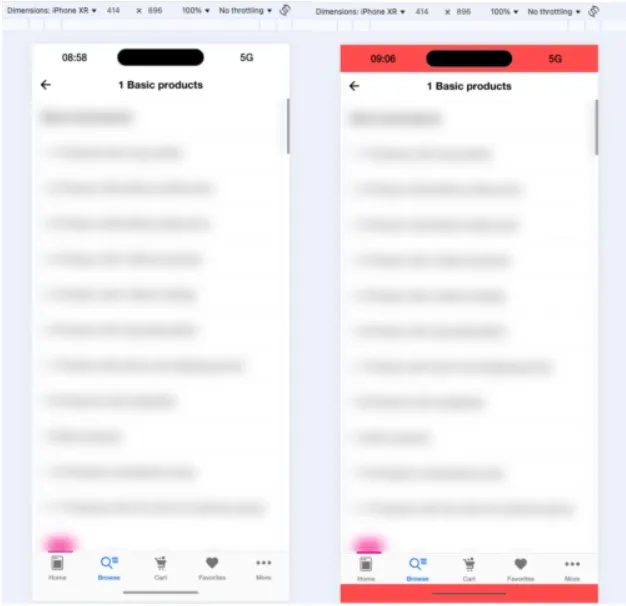
Section titled “Simulated iOS Safe Area Inset”Helpful development feature: simulated iOS safe area insets. It’s designed to make it easier to adjust custom extensions to accommodate iOS-specific layout constraints, especially for devices with notches or home indicators.
The insets are activated by default when an iOS user agent is selected in the devtools. They can be toggled via keyboard shortcuts (cmd+i on Mac, command+i on Windows / Linux). One can hide them by long pressing on one of the insets. One can activate additional highlighting by clicking one of the insets.
How It Works
- Auto-Activated: Insets are shown automatically when an iOS user agent is selected in your browser’s developer tools.
- Toggle Visibility: Quickly toggle the insets on/off using Ctrl + i on macOS, Windows and Linux.
- Hide Insets: Long press on any inset to hide them.
- Highlight Mode: Click on any inset to activate a visual highlight for better inspection. This tool gives developers immediate visual feedback on how their UI will behave on real iOS devices.
Example (regular insets + highlighted insets):